How to set up IPTV on Roku, Apple TV & Smart TVs (2026 Guide)
Setting up IPTV on your favorite streaming device takes under 5 minutes. This platform-by-platform guide covers the exact steps for Roku, Apple TV, Samsung Smart TVs, LG Smart TVs, and Android TV — using BexyTV credentials and the best IPTV apps for each device. Every step has been verified in May 2026 against the latest firmware and app store versions, including the recently expanded IPTV app selection in the Roku Channel Store and the May 2026 release of IPTV One for Android TV with native cloud playlist sync. Requirements: a stable internet connection of 25 Mbps or faster for HD, or 50 Mbps+ for 4K.
JM
Jordan M.
May 8, 2026 · 8 min read
Quick answer: To set up IPTV on Roku, Apple TV, or a Smart TV in 2026 — install IPTV Smarters Pro from your device's app store, select Xtream Codes API login, enter your BexyTV username, password, and server URL from your welcome email, then save. The entire setup takes under 5 minutes on any device. The 2026 build of IPTV Smarters Pro now supports Auto Frame Rate (AFR) and HDR10+ passthrough, so 4K BexyTV streams hand off cleanly to your TV's native refresh rate. Note for Roku owners: Roku still limits third-party IPTV apps in 2026, so if IPTV Smarters isn't listed in your region's Channel Store, screen-mirror from the phone app or use Roku's developer-mode install instead.
IPTV Smarters Pro: the easiest way to set up IPTV on any deviceBexyTV works on every major streaming device — Fire TV, Roku, Apple TV, Android TV, Smart TV, iOS, Android, Windows, macOS, and MAG boxes.
Quick reference: which app for which device?
Device
Recommended App
Where to get it
4K Support
Roku
OTTplayer or IPTV Smarters Pro
Roku Channel Store
✓ On 4K models
Apple TV
IPTV Smarters Pro or GSE Smart IPTV
App Store
✓ Apple TV 4K
Samsung Smart TV (Tizen)
Smarters Player Lite
Samsung App Store (Tizen)
✓ 2020+ models
LG Smart TV (WebOS)
IPTV Smarters Pro
LG Content Store (WebOS)
✓ 2019+ models
Android TV / Google TV
TiviMate (best) or IPTV Smarters Pro
Google Play Store
✓ Yes
Amazon Firestick
TiviMate or IPTV Smarters Pro
Downloader app (sideload)
✓ 4K Max / Cube
How to set up IPTV on Roku
Roku runs a closed operating system — unlike Firestick, you cannot sideload IPTV apps. Instead, use one of two approaches: install OTTplayer or IPTV Smarters Pro directly from the Roku Channel Store, or screen mirror from a phone running TiviMate or IPTV Smarters Pro. The Channel Store method is simpler; screen mirroring gives you access to TiviMate's richer EPG on your TV.
Method 1: OTTplayer from Roku Channel Store (easiest)
1
From your Roku home screen, scroll up to Streaming Channels and select Search Channels.
2
Search for OTTplayer (or IPTV Smarters Pro). Click Add Channel and install it — it's free.
3
Open the app. In OTTplayer, go to Add Playlist and choose M3U URL. Paste your BexyTV M3U URL from your welcome email.
4
Save and wait 30–60 seconds for channels to load. Done.
Method 2:
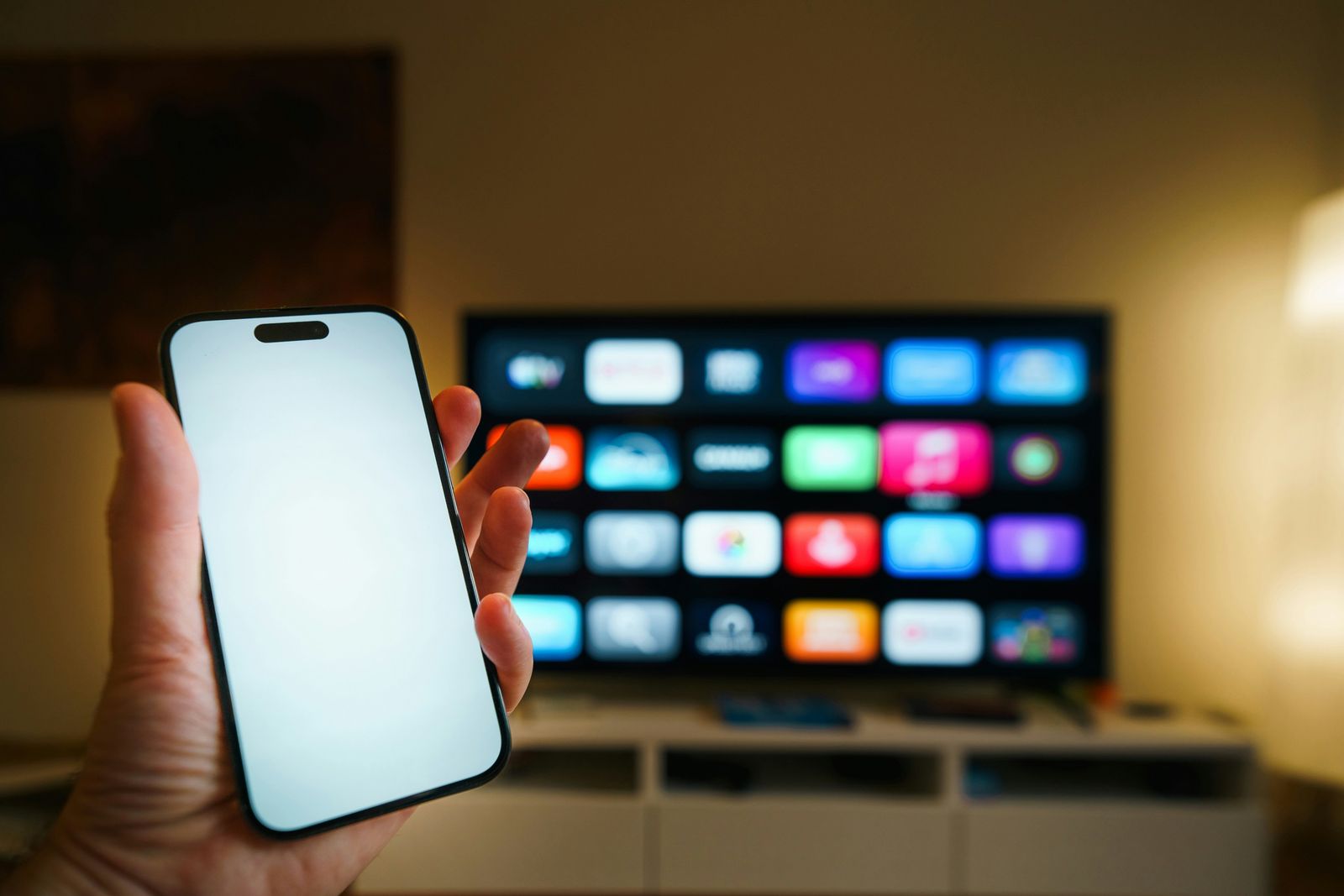
Screen mirroring TiviMate to Roku — full EPG on the big screen
Screen mirror TiviMate from Android phone (best quality)
Because Roku's OS is closed, TiviMate is not available natively. However, you can install TiviMate on an Android phone, then screen mirror to your Roku TV for the full cable-style EPG experience on your big screen.
1
Install TiviMate or IPTV Smarters Pro on your Android phone and log in with your BexyTV Xtream Codes credentials.
2
On your Roku, go to Settings → System → Screen Mirroring and set it to Prompt or Always Allow.
3
On your Android phone, open Cast (or Smart View on Samsung) and select your Roku device. Your phone screen mirrors to the TV — TiviMate runs full screen.
Roku compatibility note: Roku Streaming Stick 4K, Roku Ultra, and Roku Pro Series support 4K HDR streaming via IPTV apps. Older Roku Express models (HD only) max out at 1080p. Make sure your Roku model supports 4K before purchasing a subscription for 4K content.
How to set up IPTV on Apple TV
Apple TV 4K is one of the best IPTV devices available in 2026 — powerful A-series chip, native Dolby Vision and Dolby Atmos support, and a reliable App Store with multiple IPTV apps. Best recommended apps: IPTV Smarters Pro and GSE Smart IPTV, both available directly from the Apple TV App Store with no sideloading required.
Setup with IPTV Smarters Pro (recommended)
1
On your Apple TV home screen, open the App Store.
2
Search for IPTV Smarters Pro or GSE Smart IPTV. Click Get to install — both are free.
3
Open the app, select Add User, and choose Xtream Codes API Login.
4
Enter your BexyTV Username, Password, and Server URL from your welcome email. Save and start watching.
Apple TV IPTV tips
Enable Match Frame Rate and Match Dynamic Range. Go to Settings → Video and Audio and turn on both. This ensures tvOS automatically switches to Dolby Vision or HDR10 mode when a compatible stream plays.
Apple TV 4K (3rd gen, 2022+) supports AV1 codec — BexyTV uses AV1 on select 4K channels for better efficiency at the same visual quality, reducing buffering on slower connections.
GSE Smart IPTV supports both M3U and Xtream Codes, has a built-in EPG, and a clean tvOS interface optimized for Siri Remote. A solid alternative to IPTV Smarters if you prefer a different layout.
Apple TV HD (non-4K models) work with BexyTV at 1080p — 4K content requires Apple TV 4K (2nd gen or newer).
How to set up IPTV on Samsung Smart TV
Samsung Smart TVs run the Tizen OS and support IPTV apps natively via the Samsung Smart Hub app store. Models from 2018 onward (Tizen 4.0+) are supported. No sideloading or extra hardware required — set up takes under 5 minutes directly on the TV.
1
Press the Home button on your Samsung remote to open the Smart Hub.
2
Navigate to the Apps section. Use the search bar to search for Smarters Player Lite.
3
Select Install. Once installed, open the app and choose Add Playlist → Xtream Codes API.
4
Enter your BexyTV Username, Password, and Server URL. Save. The channel list and EPG import automatically.
Samsung tip: If your Samsung TV is older than 2018 and Smarters Player Lite doesn't appear in the app store, your Tizen version may not support it. Plug a Firestick 4K Max ($59.99) or Android TV box into any HDMI port — your existing BexyTV credentials work identically on that device.
How to set up IPTV on LG Smart TV
LG Smart TVs run the WebOS operating system and have IPTV apps available via the LG Content Store. Models from 2019 onward (WebOS 4.0+) are supported with no sideloading or extra hardware.
1
Press the Home button on your LG Magic Remote. Open the LG Content Store (on newer WebOS it may be labeled LG App Store).
2
Search for IPTV Smarters Pro. Select Install.
3
Open the app. Select Add User → Xtream Codes API.
4
Enter your BexyTV Username, Password, and Server URL. Save. Channels and EPG load automatically within 60 seconds.
LG tip: LG OLED TVs from 2020 onward support Dolby Vision — BexyTV streams pass Dolby Vision through the IPTV app when available on supported channels. For older LG Smart TVs (pre-2019), plug a Firestick or Android TV box into the HDMI port and use those BexyTV credentials there instead.
How to set up IPTV on Android TV and Google TV
Android TV and Google TV are the most flexible IPTV platforms. Both TiviMate (the gold standard player) and IPTV Smarters Pro install directly from the Google Play Store — no sideloading needed. Compatible devices include Nvidia Shield TV, Xiaomi Mi Box S, Chromecast with Google TV, Sony Android TVs, and any Android-powered smart TV. TiviMate works on Android TV only — not iOS or tvOS.
1
Open the Google Play Store on your Android TV or Google TV device.
2
Search for TiviMate (recommended — best IPTV player for Android TV) or IPTV Smarters Pro (free). Install from the Play Store.
3
Open the app. In TiviMate, choose Add Playlist. In IPTV Smarters Pro, choose Add User.
4
Select Xtream Codes as the login method.
5
Enter your BexyTV Server URL, Username, and Password. Save — channels and EPG load automatically.
Android TV tip: TiviMate Premium is $25 one-time (lifetime) or $4.99/year. The Premium upgrade unlocks DVR recording to a USB drive, catch-up TV, picture-in-picture, and advanced EPG controls. For Android TV users, this is the single best investment for your IPTV setup. Pairs perfectly with BexyTV's 8,500+ channel lineup.
Internet speed requirements for IPTV
Speed is the most common cause of IPTV issues. Here's what you need:
Stream Quality
Minimum Speed
Recommended
SD (480p)
5 Mbps
10 Mbps
HD (1080p)
15 Mbps
25 Mbps
4K HDR
35 Mbps
50 Mbps+
Wired Ethernet always beats Wi-Fi for IPTV. If your device is across the room from the router, use a powerline Ethernet adapter (~$30) rather than relying on Wi-Fi.
Common IPTV setup problems and fixes
"Login failed" error: Credentials are case-sensitive. Double-check your username and password from the welcome email. Server URL must start with http:// or https:// — don't omit this prefix.
Channels load but won't play: Run a speed test at fast.com. IPTV needs at least 25 Mbps for HD and 50 Mbps for 4K. Switch to Ethernet or 5GHz Wi-Fi. Restart your router.
Buffering during live sports: Sports streams use high bitrates. Switch from 2.4GHz to 5GHz Wi-Fi, or connect via Ethernet. Disable other bandwidth-heavy devices during the game (streaming, cloud backup, gaming).
EPG is empty after first login: Wait 2 minutes — EPG data downloads in the background on first launch. If still empty after 5 minutes, log out and log back in. On TiviMate, go to Settings → EPG → Refresh EPG.
App not available in your Smart TV's store: Your TV's OS version may be too old. Check model year — Samsung pre-2018 and LG pre-2019 often lack app support. Plug in a Firestick 4K Max or Chromecast with Google TV (both under $60) — BexyTV credentials work on both immediately.
Roku won't install IPTV app: Roku's closed OS means no sideloading. Use OTTplayer or IPTV Smarters Pro from the Roku Channel Store, or use the screen mirror method from an Android phone with TiviMate installed.
Frequently asked questions
Can I install IPTV on Roku?
Yes — install OTTplayer or IPTV Smarters Pro from the Roku Channel Store, sign in with your BexyTV M3U URL or Xtream Codes credentials, and you'll be streaming in roughly five minutes. Roku's closed OS blocks sideloading, but these official Channel Store apps deliver full BexyTV access. If you want TiviMate's richer cable-style EPG, mirror it from an Android phone to your Roku TV instead. On Apple TV and Samsung/LG Smart TVs the same M3U or Xtream Codes credentials load directly into IPTV Smarters Pro from the native App Store — no mirroring needed.
How do I install IPTV on Apple TV?
Open the App Store on Apple TV, search for IPTV Smarters Pro or GSE Smart IPTV, install it (free), then log in with your BexyTV Xtream Codes credentials — Username, Password, and Server URL from your welcome email. Apple TV 4K (2nd gen+) supports 4K HDR, Dolby Vision, and Dolby Atmos passthrough with compatible BexyTV streams.
Does IPTV work on Samsung Smart TVs?
Yes — Samsung Tizen TVs from 2018 onward support Smarters Player Lite directly from the Samsung Smart Hub app store with no sideloading needed. Open Smart Hub, search Apps for Smarters Player Lite, install it, choose Xtream Codes login, enter your BexyTV credentials, and you're live. As of the May 2026 Tizen OS 9 update, BexyTV streams also pass HDR10+ metadata cleanly to compatible Samsung Neo QLED and OLED panels, so HDR content automatically renders in the TV's native dynamic-range mode. Older Samsung TVs (pre-2018) can use a Firestick or Android TV box plugged into any HDMI port.
Does IPTV work on LG Smart TVs?
Yes — LG WebOS TVs from 2019 onward support IPTV Smarters Pro from the LG Content Store. Press Home, open the LG App Store, search IPTV Smarters Pro, install it, and log in with your BexyTV Xtream Codes credentials. LG OLED and QNED TVs from 2020+ support Dolby Vision passthrough. Pre-2019 LG TVs work best with an external streaming stick.
What's the best IPTV app for Smart TVs in 2026?
For Android TV, TiviMate is the best IPTV app — cable-style EPG, 7-day time-shift, DVR, and the smoothest 4K interface available. For Samsung Tizen and LG WebOS, Smarters Player Lite is the most compatible native option. For Apple TV, IPTV Smarters Pro and GSE Smart IPTV are both excellent App Store choices. All support BexyTV Xtream Codes login.
Does Roku block IPTV?
Roku doesn't block IPTV outright, but its closed OS prevents sideloading. Use OTTplayer or IPTV Smarters Pro from the official Roku Channel Store — both support BexyTV M3U and Xtream Codes. Alternatively, mirror your Android phone running TiviMate to your Roku TV via the built-in screen mirroring feature for a richer IPTV experience.
 IPTV Smarters Pro: the easiest way to set up IPTV on any device
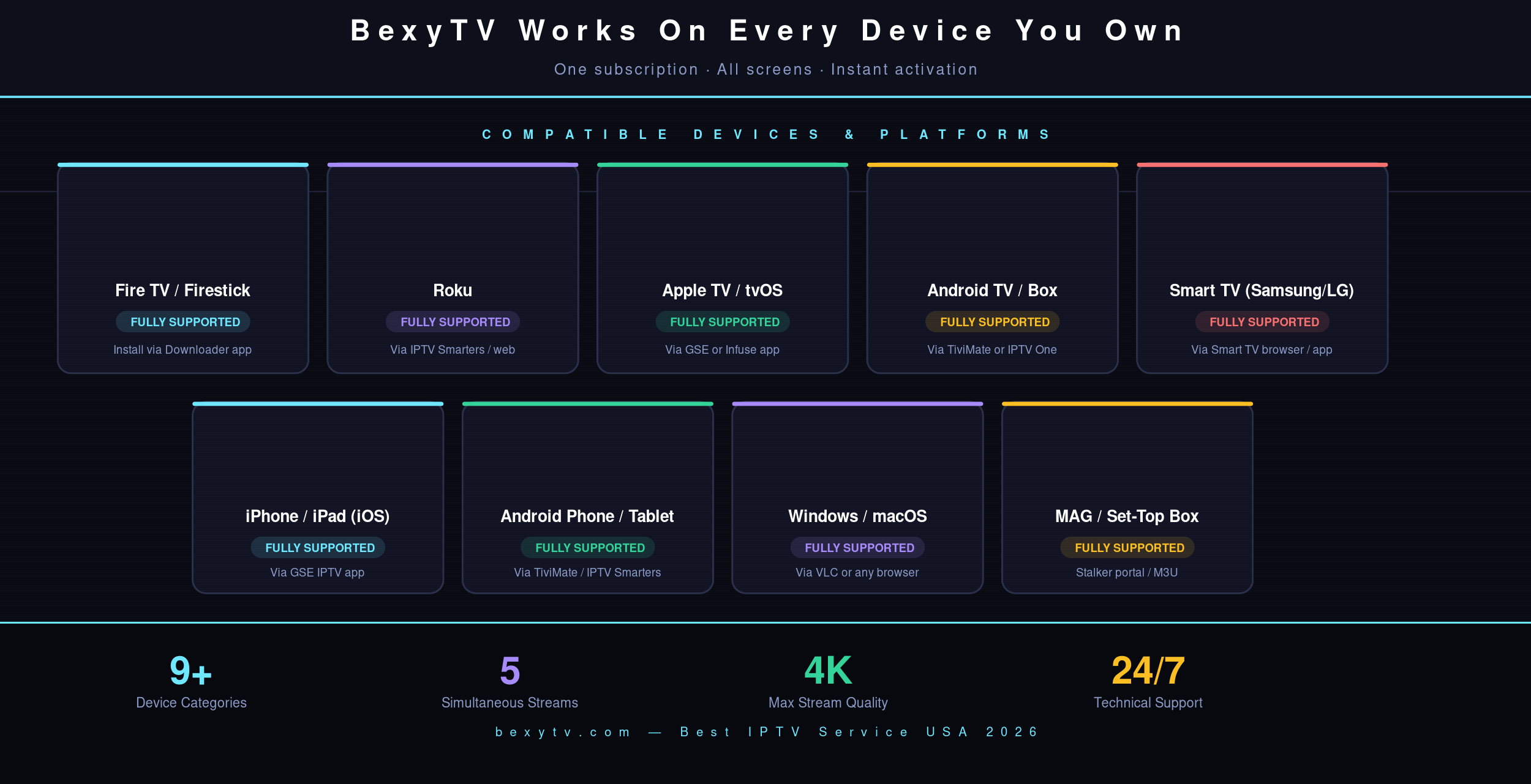 BexyTV works on every major streaming device — Fire TV, Roku, Apple TV, Android TV, Smart TV, iOS, Android, Windows, macOS, and MAG boxes.
 Screen mirroring TiviMate to Roku — full EPG on the big screen